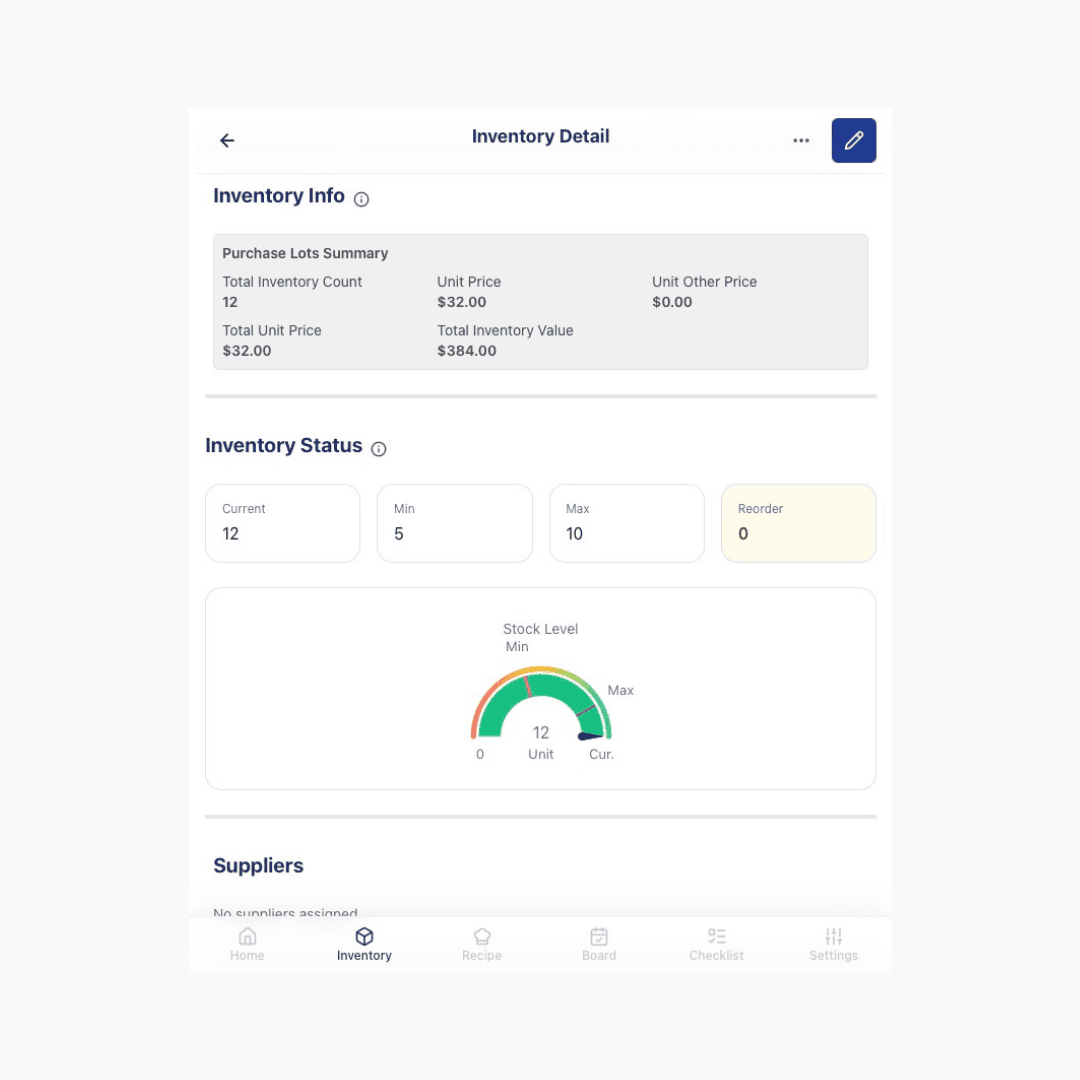
Inventory

Track ingredients, purchase prices, and stock levels in one place.

Adding Items

What does adding an item to Inventory unlock?
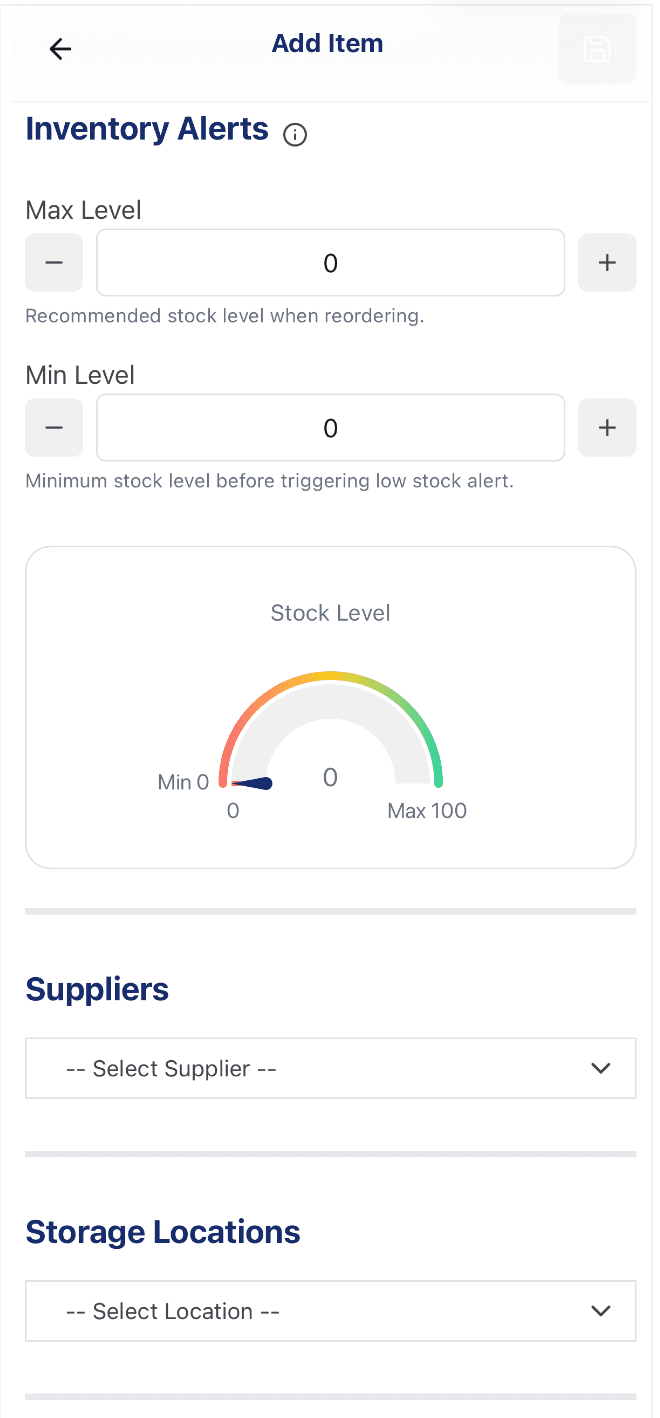
Add Item form Inventory Alerts section, showing Max Level, Min Level, a Stock Level gauge, and the Suppliers and Storage Locations fields

Every ingredient or supply you use should have a record in Inventory. This is what allows Recipe to calculate costs automatically, gives your team a baseline for Inventory Checks, and keeps purchasing data in one place.

  • Min & Max Level — set a reorder point and a par level to restock to
  • Stock Level gauge — see at a glance where the item sits between Min and Max
  • Supplier — link the item to where you buy it, for faster reordering
  • Storage Location — tag where it's kept, so Inventory Checks can go area by area

Last reviewed 2026-08-20
How do Unit and Unit Cost affect Recipe costs?

As you record purchases for an item, Dinezy tracks its purchase price — for example, $8.00 per lb. Recipe uses this number to calculate ingredient costs automatically.

Example: black tea's purchase price is $8.00 per lb. A recipe using 4 oz of black tea will show a material cost of $2.00.

Last reviewed 2026-08-20

What's the difference between a Purchase Lot and an Inventory Item?

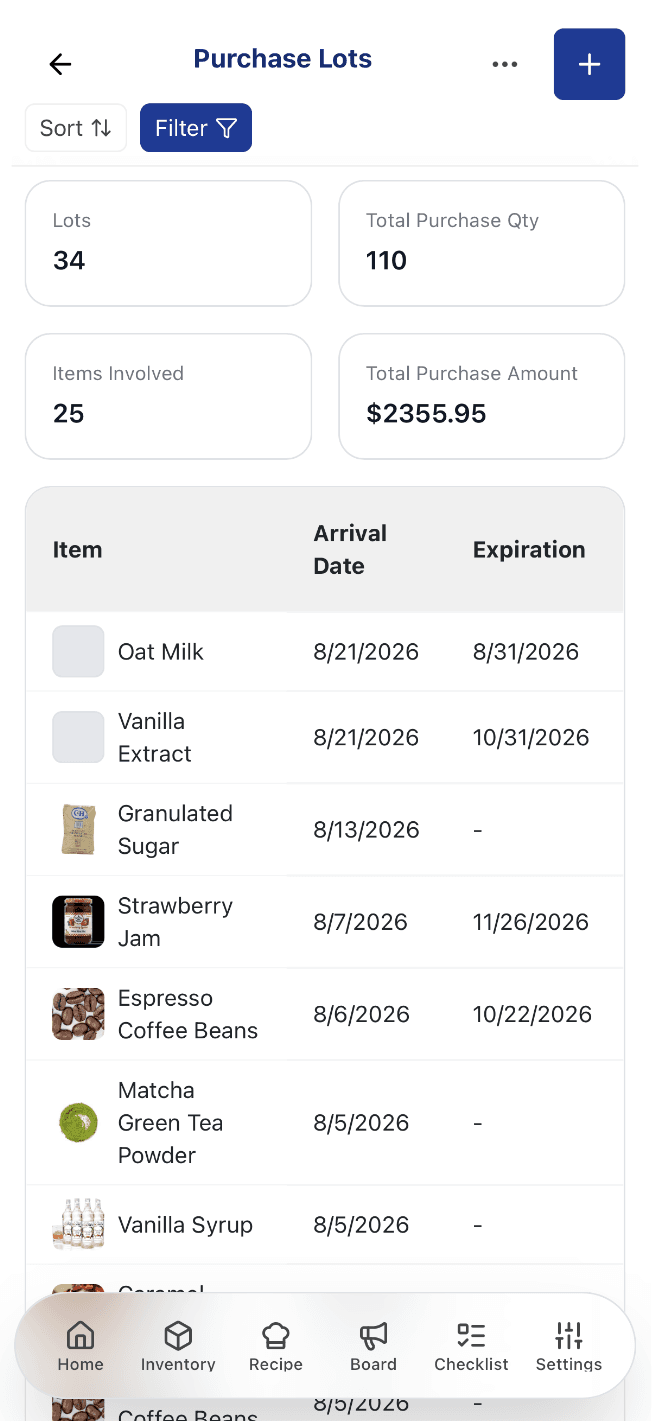
Purchase Lots list page, showing Lots, Total Purchase Qty, Items Involved, and Total Purchase Amount summary cards above a table of items with arrival and expiration dates

An Inventory Item is the ingredient or supply itself — the thing you track, like coffee beans or all-purpose flour. A Purchase Lot is a record of one specific delivery of that item: its date, quantity, and price. An item can have many Purchase Lots over time, and Dinezy uses them together to work out your current stock quantity and a weighted-average purchase price.

  • Lots & Items Involved — every delivery across every item, tracked in one list
  • Total Purchase Qty & Amount — combined quantity and spend across all lots
  • Arrival & Expiration dates — know when each delivery came in and when it expires
  • Sort & Filter — narrow the list down to the lots you're looking for

Last reviewed 2026-08-20

How do I set Min and Max Levels?

Min Level is your reorder point — the quantity that triggers a low-stock warning. Max Level is your par level — the quantity you're aiming to restock up to. When an Inventory Check records a quantity below Min, the item appears on the low-stock list with a suggested reorder quantity of Max minus your current count.

Item detail page showing the Min Level and Max Level fields, and the low-stock warning indicator (e.g. red badge or exclamation icon)

Last reviewed 2026-08-20

Inventory Checks & History

How do Inventory Checks work?

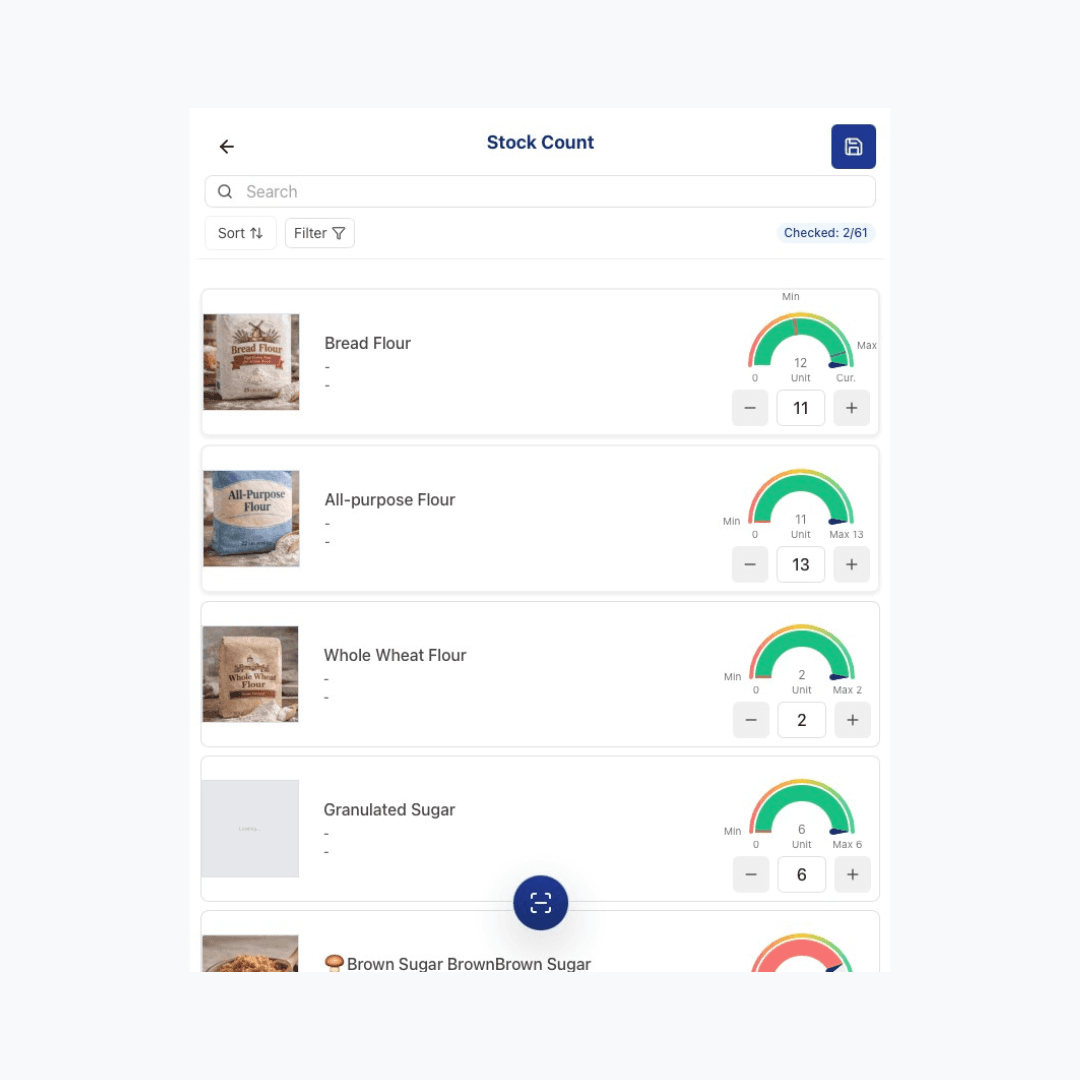
An Inventory Check is a snapshot of actual quantities at a point in time. Anyone with the right permission goes through the item list and enters current quantities, then taps Submit Inventory Check. The check goes to the Owner or another authorized reviewer for approval before the stock levels are officially updated.

Inventory Check page showing the item list with quantity input fields, the "Edited" filter toggle, and the Submit Inventory Check button

Last reviewed 2026-08-20

How do I review historical inventory data?

Every approved Inventory Check builds a permanent record for that item — quantity, weighted-average cost, and total value at that point in time. Stock Trends is where you look that history up: pick an item, pick a date range, and see how its quantity, cost, and value actually moved.

Open an item's Stock Trends page and you get a Period Overview for the range you've selected, plus three charts plotted day by day: Quantity, Average Cost, and Inventory Value. Quick-range buttons cover the ranges you'll reach for most; a custom start/end date works for anything else.

  • Quick ranges — 7D, 30D, 90D, 180D, 1Y, or YTD — or set a custom date range
  • Quantity & Value deltas — the Period Overview shows how much each changed since the start of the range
  • Stock Level — where the item's current quantity sits against its Min and Max — Low, Normal, or Overstock
  • Cost Data status — flags whether every count in the range priced out cleanly, or whether a gap needs attention — see below

Below the charts is the full history as a table — every counted date, quantity, average cost, and value — which you can download as a CSV for your own records or to hand to a bookkeeper.

Last reviewed 2026-09-03

How do I bulk import inventory from Excel?

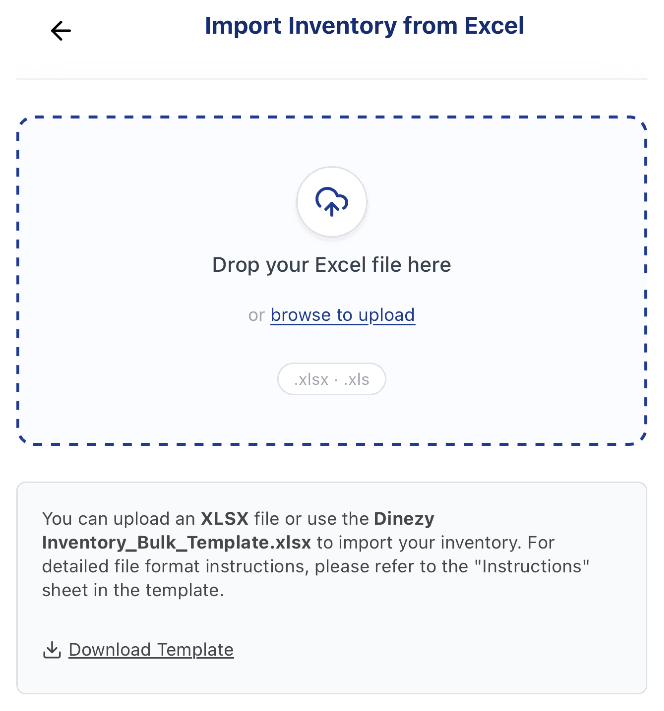
Bulk Import page showing the Excel file drop zone and the Download Template link

If you have many items to add at once, use Bulk Import. Download the Excel template from the Bulk Import page, fill it in following the column format, then upload it — all items will be created in one step.

  • Drag & drop or browse — drop an Excel file in, or click browse to upload
  • Download Template — grab the Dinezy Inventory_Bulk_Template.xlsx to fill in
  • Supported formats — .xlsx and .xls

Last reviewed 2026-08-20