
Home

See what needs your attention today, in one quick snapshot.

Dashboard Overview

What should I check first when I log in?
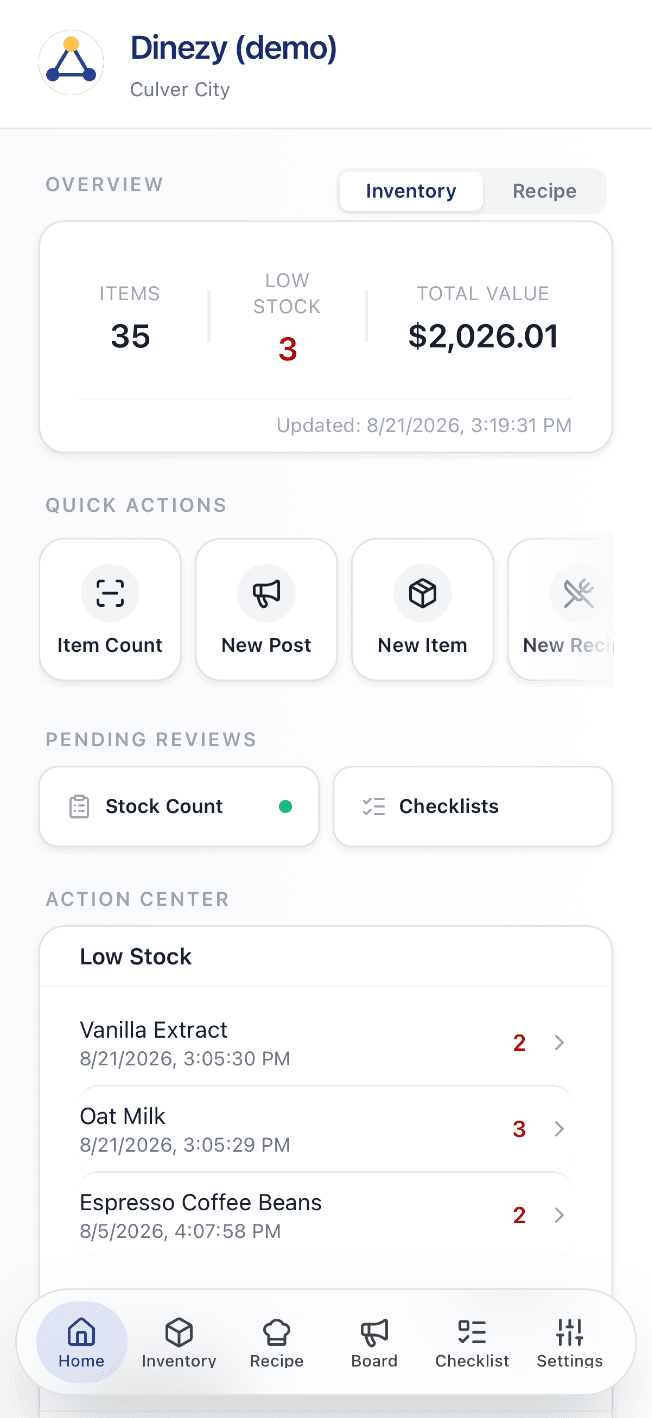
Full Home dashboard view, showing the Overview stats card, Quick Actions, Pending Reviews, Low Stock list, and Bulletin Board

The Home screen shows your store's daily summary — including pending checklists, unread board posts, and other items that need your attention. We recommend checking this page first each time you log in.

  • Overview card — item count, low-stock count, and total inventory value at a glance
  • Quick Actions — jump straight to an item count, new post, new item, or new recipe
  • Pending Reviews — see stock counts and checklists waiting on your approval
  • Action Center — low-stock items and the latest Bulletin Board posts, ranked by urgency

Last reviewed 2026-08-20
How do I switch between stores?

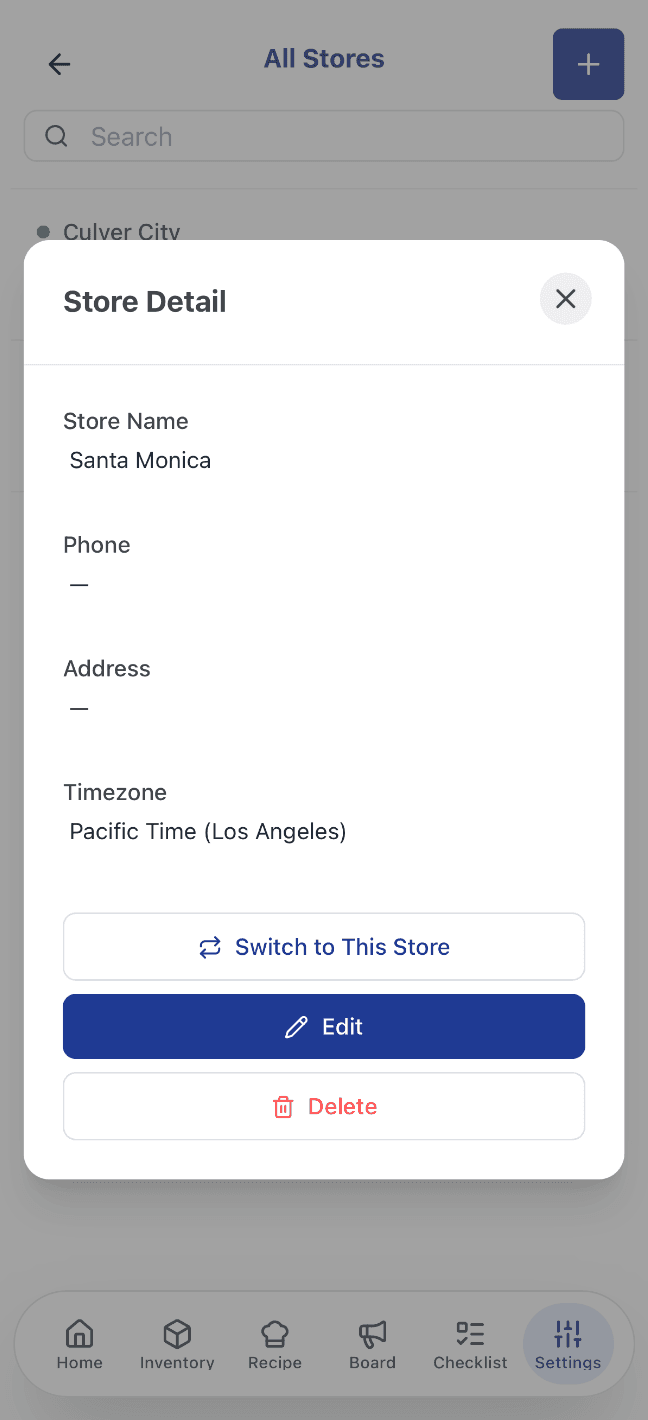
Store Detail modal under Settings → All Stores, showing the Switch to This Store button for another location

If you manage multiple locations, switch your active store under Settings → All Stores. Once switched, every page — Inventory, Recipe, Board, and Checklist — updates to show that store's data only, so a manager overseeing two locations always knows which store's numbers they're looking at.

  • One-click switch — jump between locations without logging out
  • Full data isolation — Inventory, Recipe, Board, and Checklist all scope to the active store
  • Store Detail modal — check name, phone, address, and timezone before switching
  • Built for multi-location — made for managers overseeing more than one store

Last reviewed 2026-08-20