Bulletin Board

Post announcements, tasks, RSVPs, and votes to the right people — and see who still needs to respond.

Creating Posts

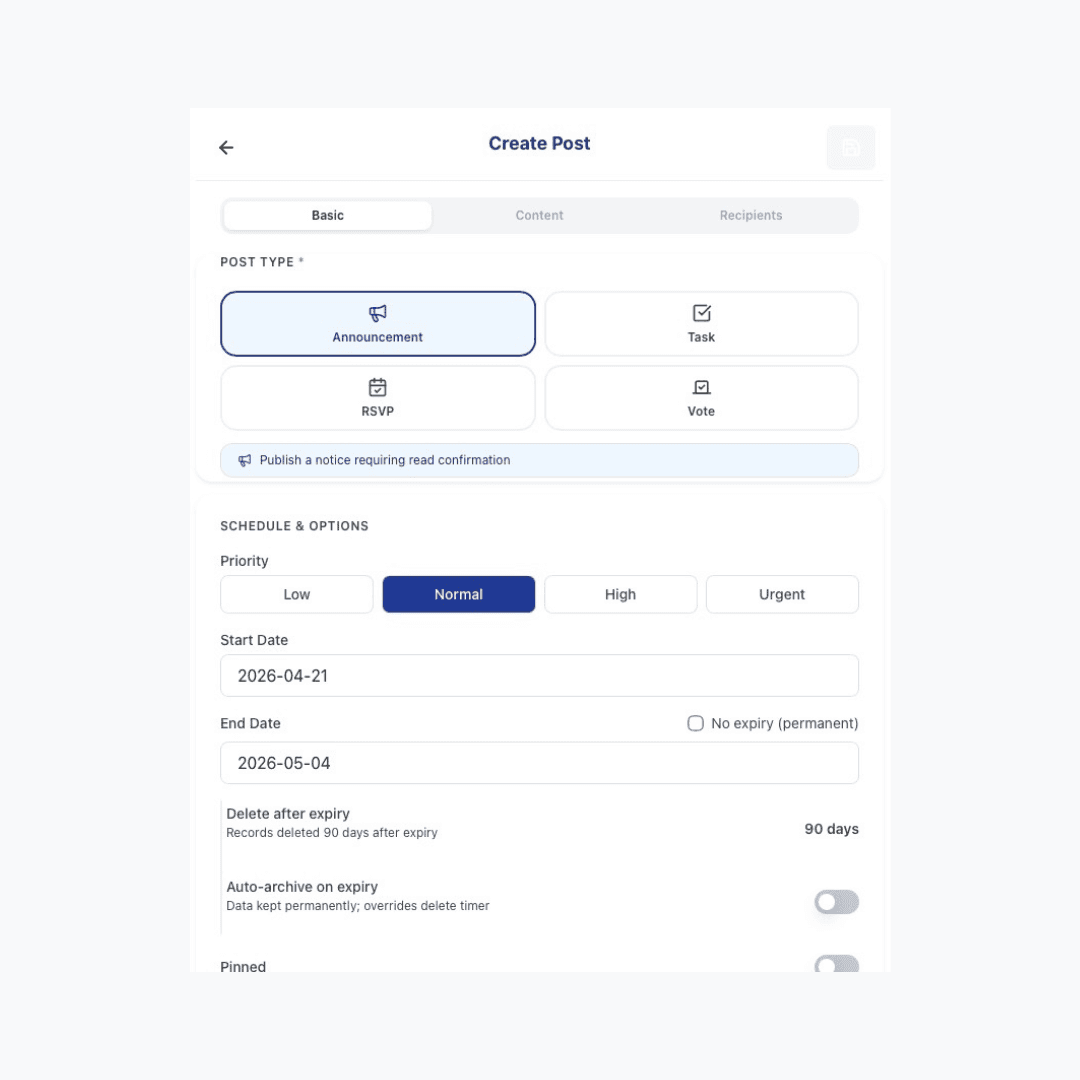
Announcement, Task, RSVP, Vote — what's the difference?

Each post type has a different interaction model. Choose the one that matches what you need:

· Announcement — Publish a notice requiring read confirmation. Staff tap Confirm Read to acknowledge. · Task — Post a checkbox or number-tracked task with a start and end date. Staff report progress directly on the card. · RSVP — Collect event attendance confirmation. Staff respond Attending, Not Attending, or Maybe. · Vote — Collect opinions with multiple options. Useful for team decisions.
New post creation page showing the four type cards (Announcement / Task / RSVP / Vote) with their one-line descriptions visible

Last reviewed 2026-10-05

How do I target the right recipients for a post?

Under the Recipients tab, choose who should receive the post: · All Brand — all active users across your accessible stores · By Store — users in specific stores · By Role — users with a particular role · Specific Users — manually selected individuals

Last reviewed 2026-08-20

How does task progress tracking work?

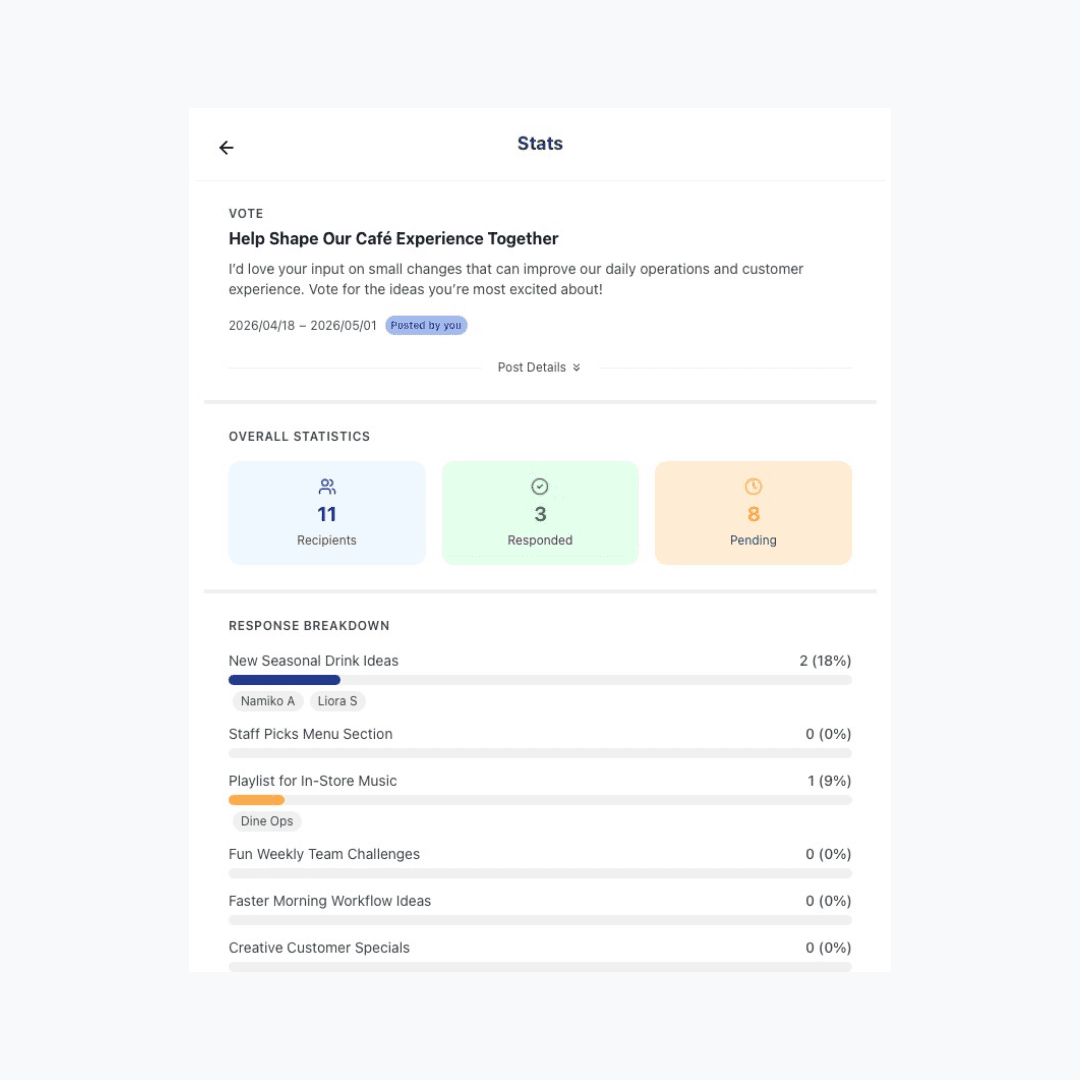
For Task posts, staff can update their progress directly from the Board card — either by tapping a checkbox or incrementing a number. As the post author, you can open the stats page to see each person's response status and current progress.

Board page showing a Task card with the progress increment button and current progress percentage displayed on the card

Last reviewed 2026-08-20

Managing Posts

How do I archive old posts?

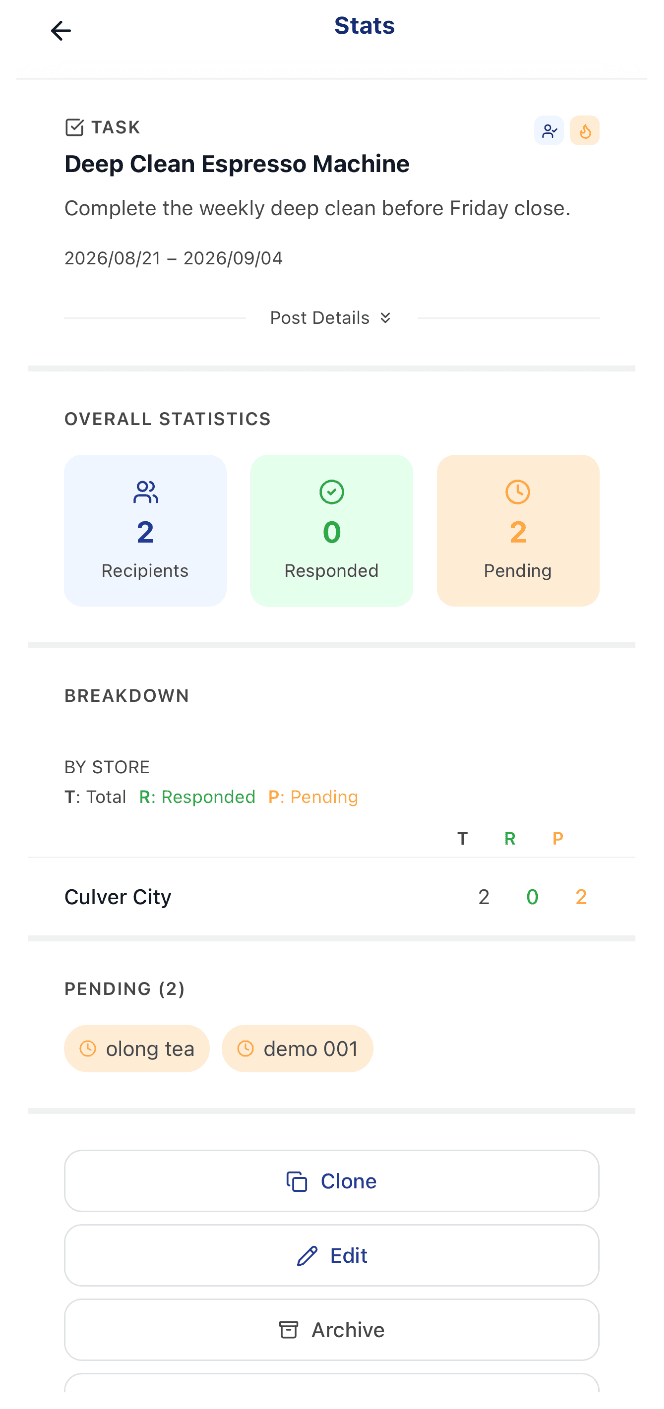
A Task post's Stats detail page, showing response counts and the Clone, Edit, Archive, and Delete actions

All posts appear in the main feed by default. Once a post is completed or no longer relevant — like an announcement about an event that's already happened — archive it. Archived posts are removed from the main feed but stay accessible any time by switching to the Archived view, so nothing is actually lost.

  • Archive from the detail page — open any post and tap Archive alongside Clone, Edit, and Delete
  • Nothing is lost — archived posts move out of the main feed but stay in the Archived view
  • Keep the record, not the clutter — archiving is the safer alternative to deleting a completed post

Last reviewed 2026-08-20

Who can delete a post?

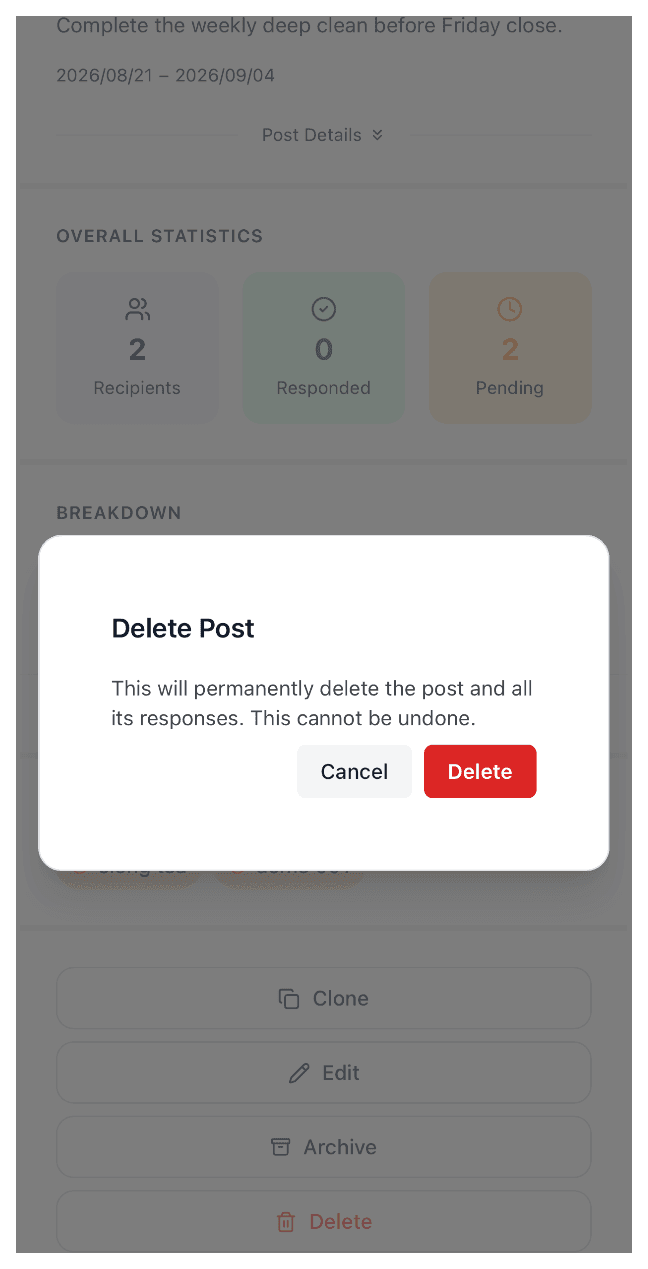
Delete Post confirmation dialog, warning that deleting the post and its responses is permanent and cannot be undone

Only the original author of a post, or the Owner, can delete it — other staff members can't remove posts created by someone else. This keeps accountability clear: it's either the person who created the post or the one person with full account access, never just anyone on the team.

  • Confirmation required — a warning dialog appears before the post and all its responses are removed
  • Permanent — no undo — once confirmed, the post and its response data cannot be recovered
  • Author or Owner only — the Delete option only appears for the post's author or the account Owner

Last reviewed 2026-08-20